Operate Mock MRI
Warning: Magnetic Field!
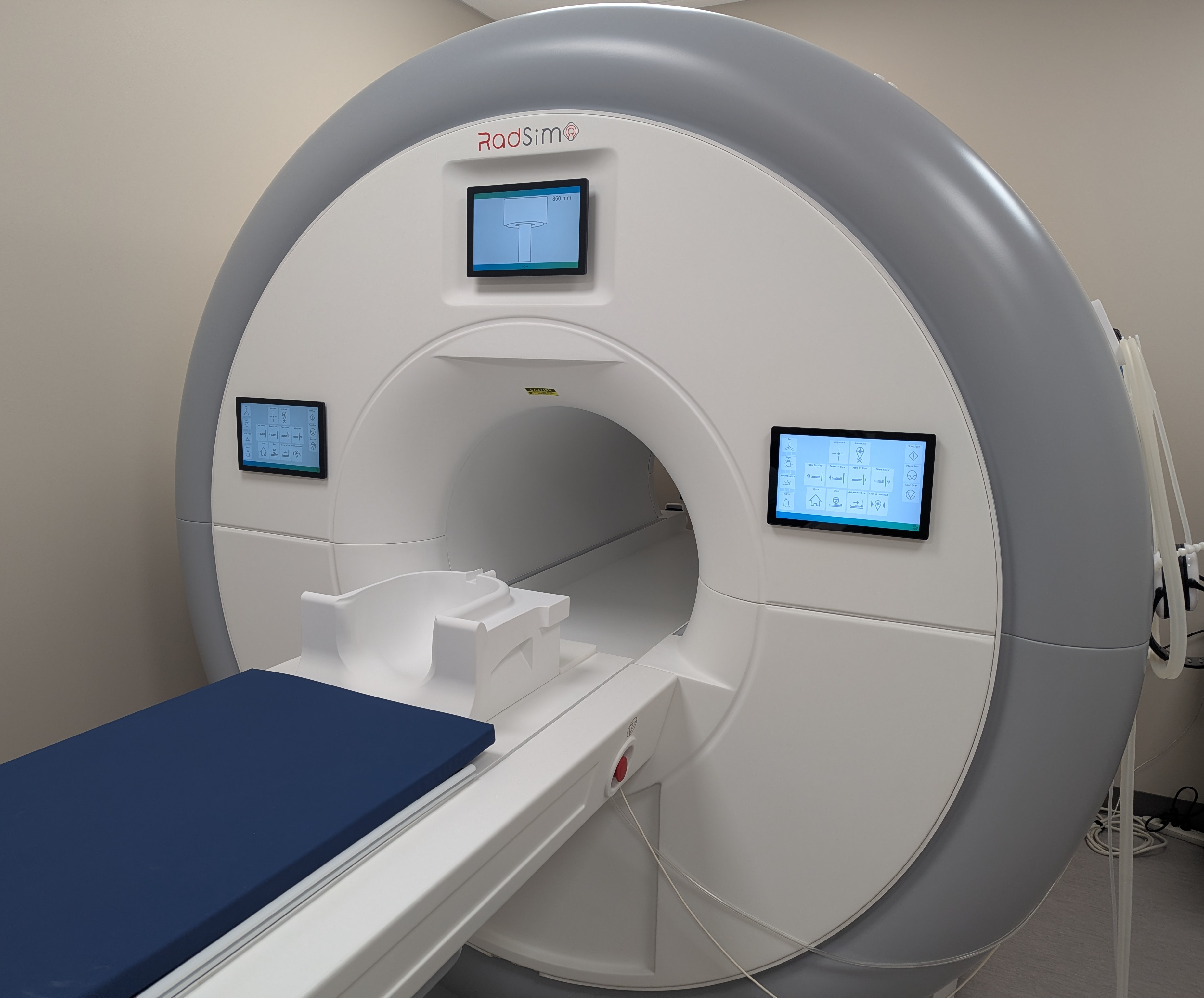
The Encore MRI Simulator is a training device designed to help participants practice remaining perfectly still during a scan, using specialized MoTrak software to monitor movement.
To power this motion-tracking feature, the simulator is equipped with an internal magnetic field generator. Because this generator emits a real magnetic field, the simulator is not compatible with pacemakers or other implanted medical devices.
Simulate MRI
Setup Instructions
Setup 1: Turn mock scanner on using both switches (red arrows) at the back of the device.
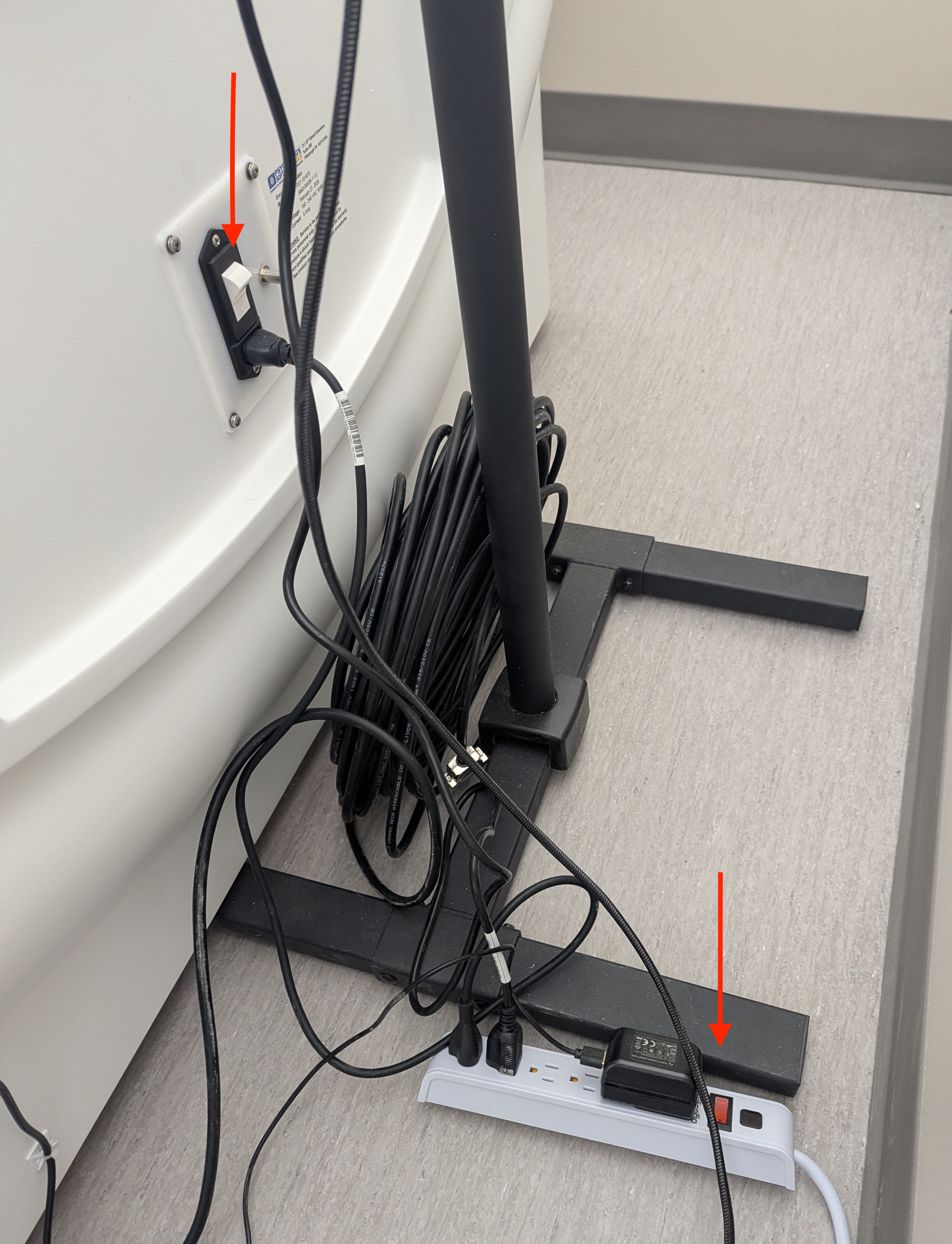
Setup 2: Wait 3 minutes for system to boot.
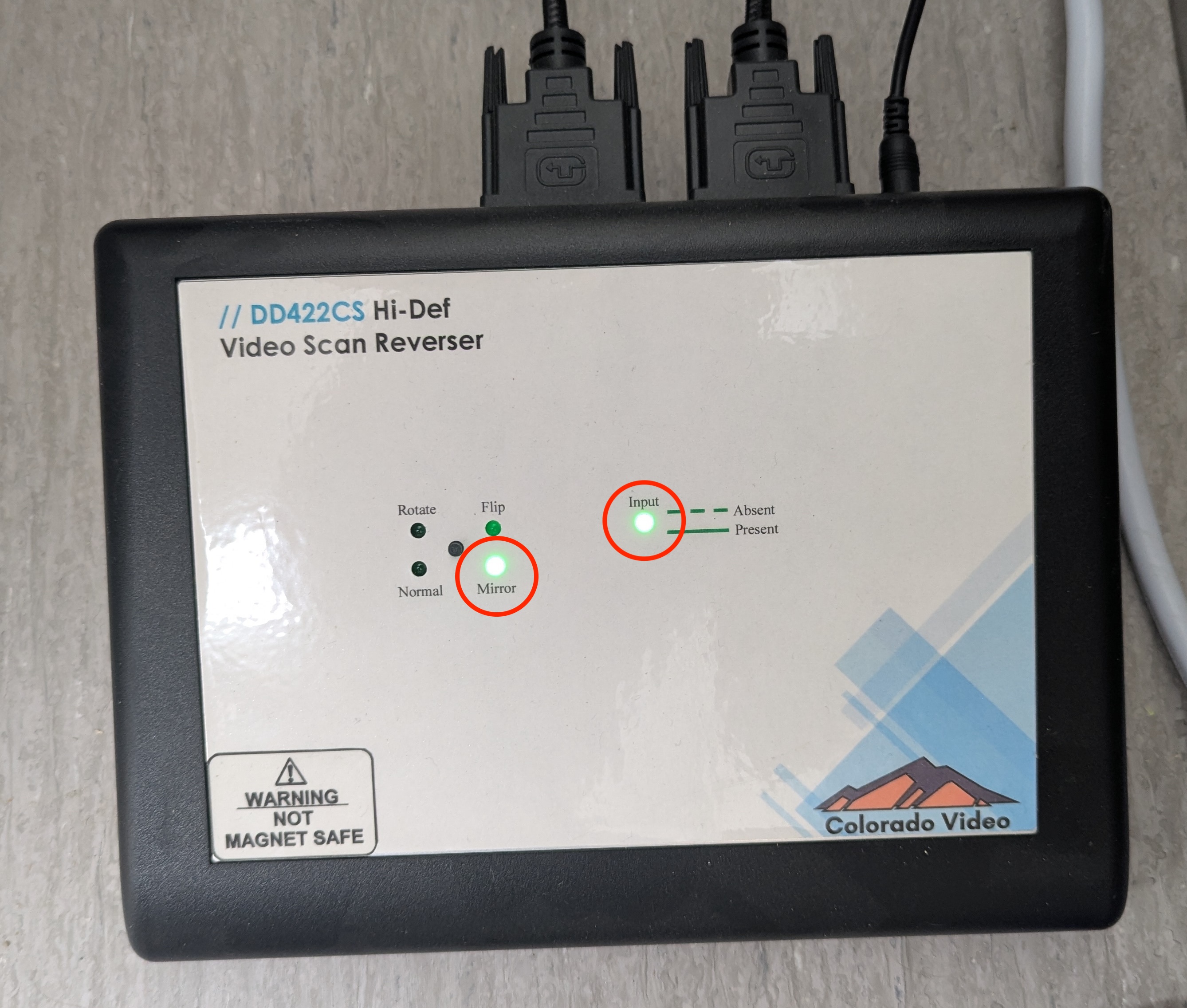
Setup 3: Verify screen inverter is working (mirror selected, Input solid).
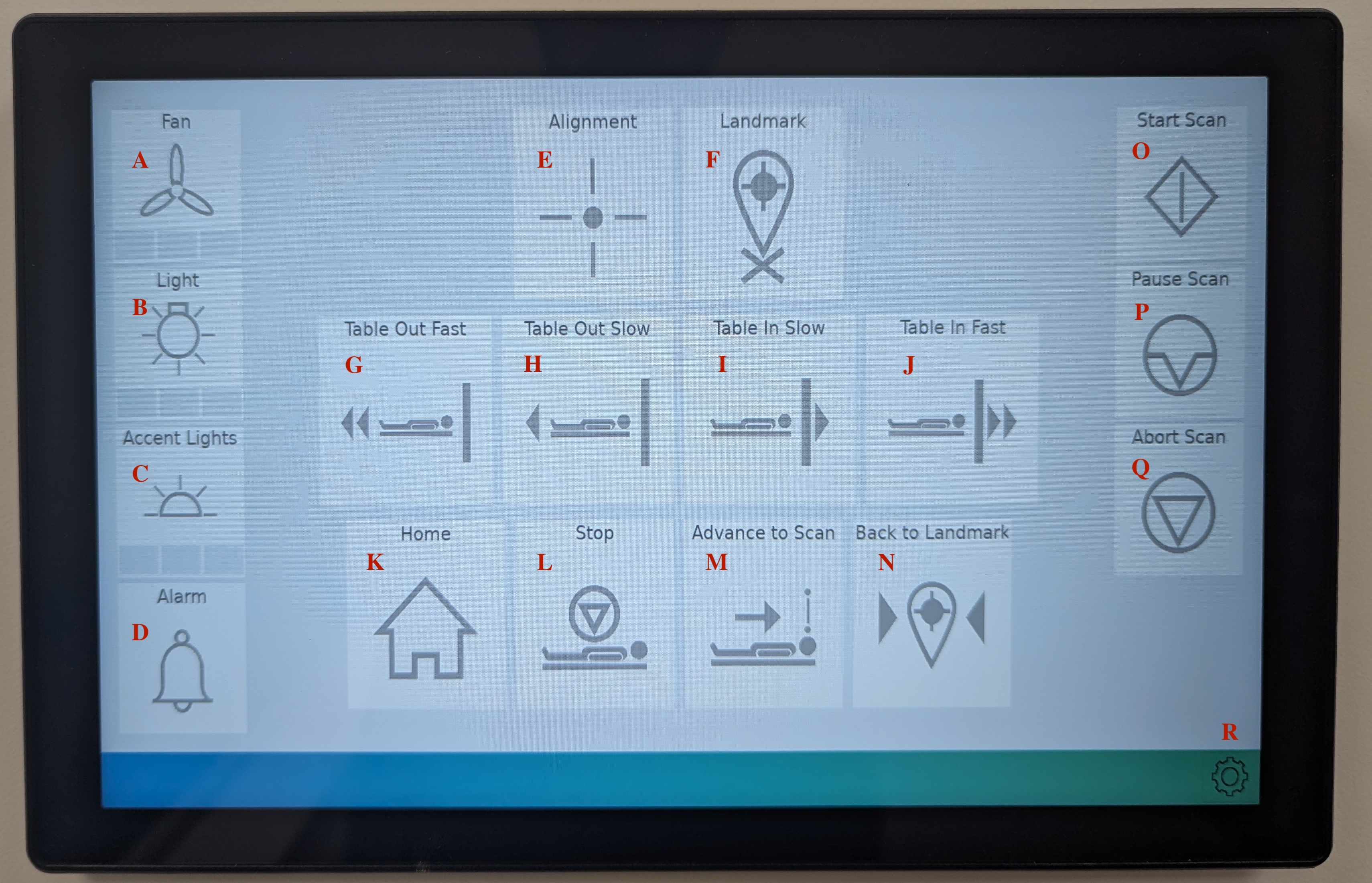
Setup 4: Customize simulation. Enter Options menu (Mock Control, R).
Setup 5: Specify your customization of:
- Bore and Accent colors (Mock Customize, A & B)
- Ambient sound (Mock Customize, C)
- Protocol sound and duration (Mock Customize, D)
- Alarm volume (Mock Customize, E)
- Button sound (Mock Customize, F)
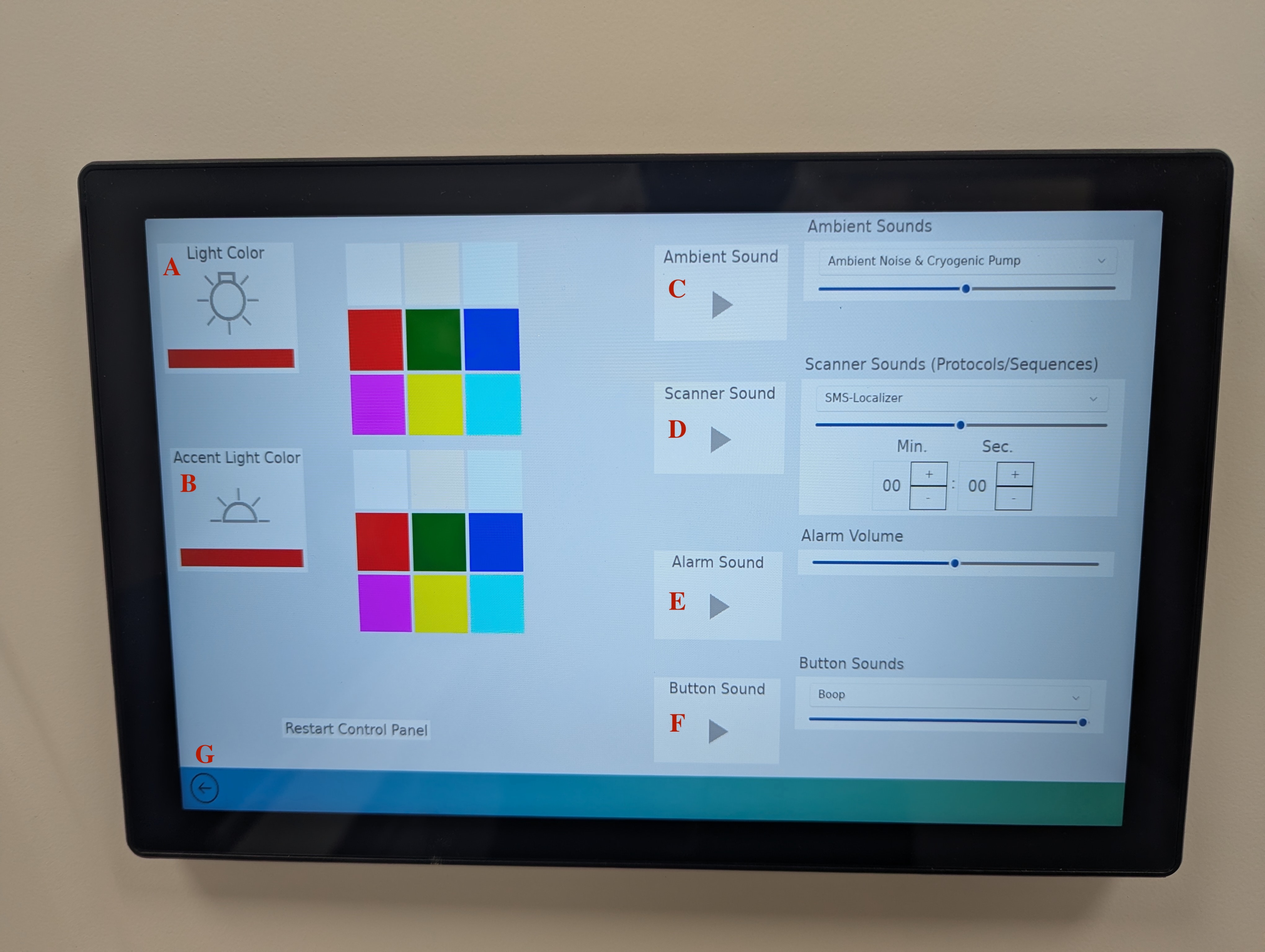
Setup 6: Once customization is complete, return to the Control menu (Mock Customize, G).
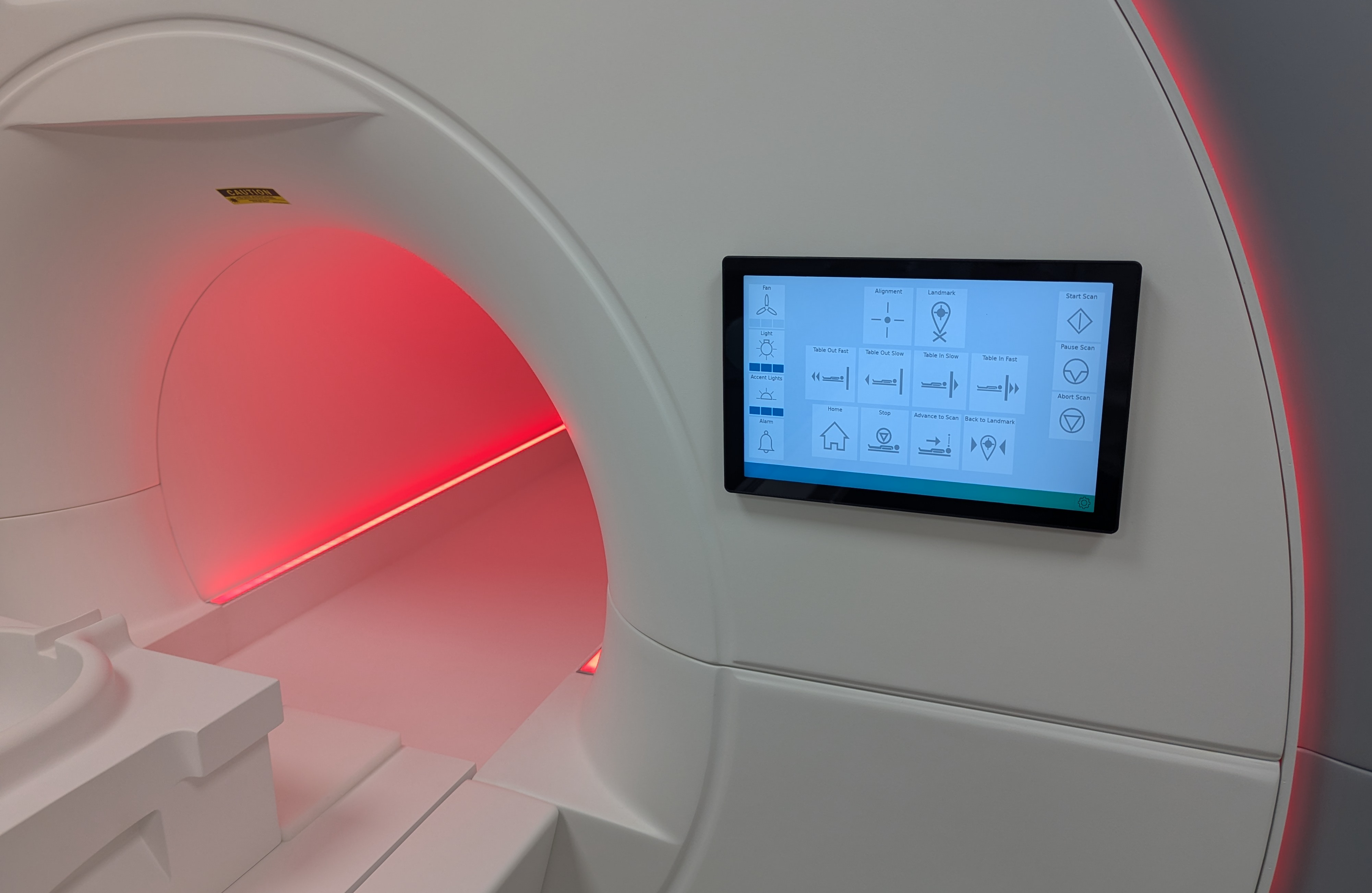
Setup 7: Specify fan, core light, and accent light strength (Mock Control, A-C).
Setup 8: If you intend to use Motrak, please also note setup instructions in Monitor Movement (steps 1-4).
Simulate Scan
Simulate 1: Have participant lay supine, with the top of the head near the apex of the coil base.
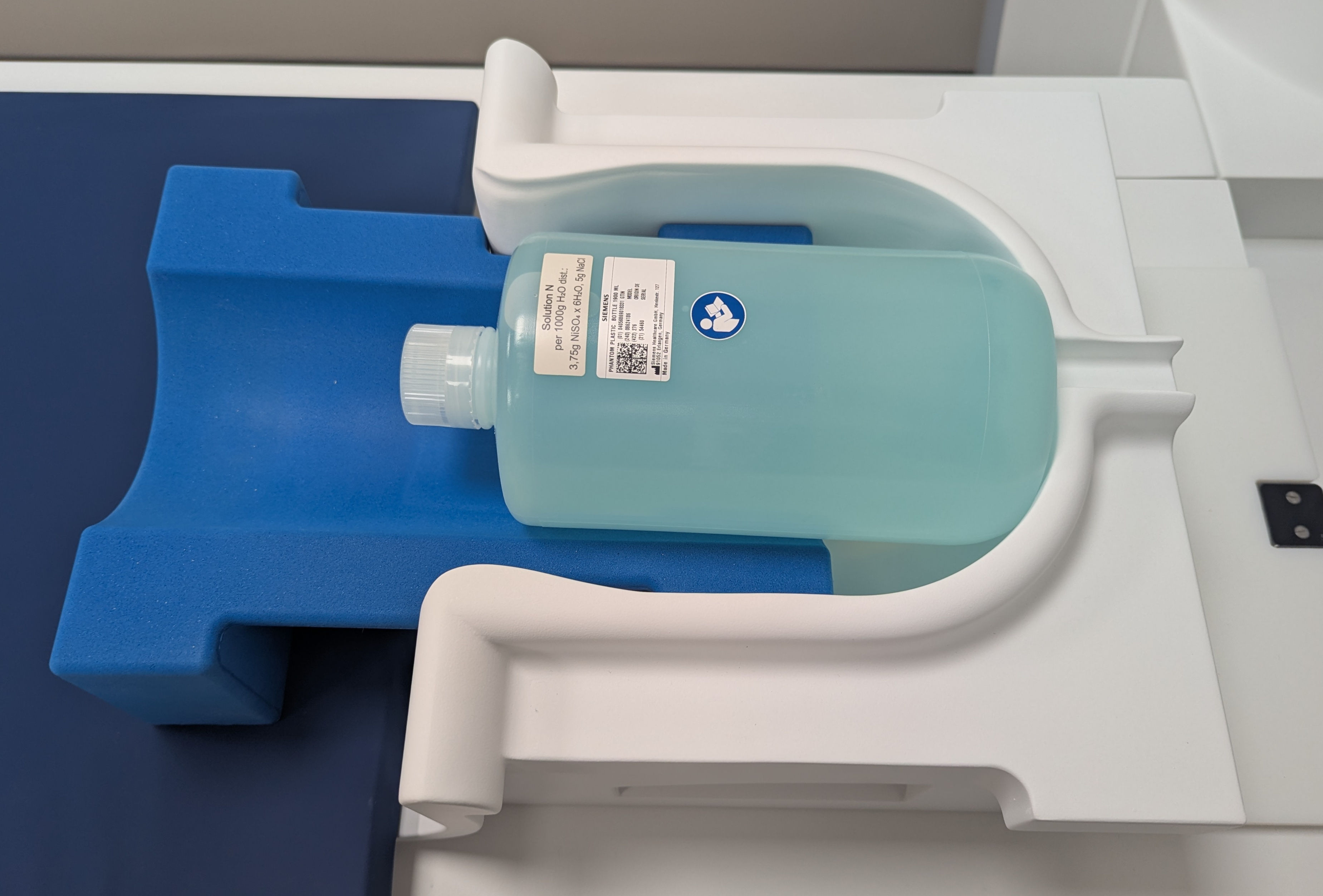
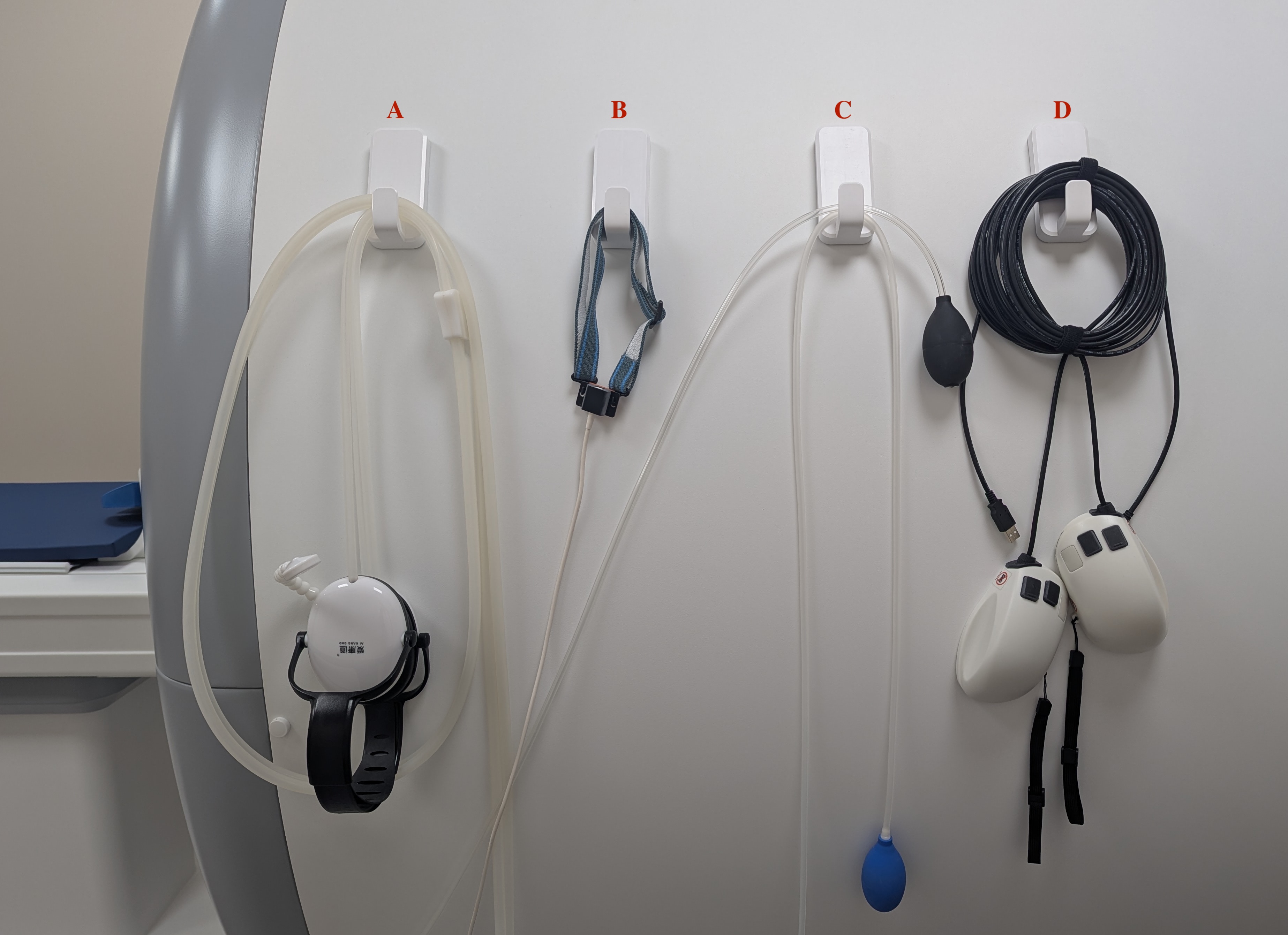
Simulate 2: Provide headphones and black squeeze ball (Mock Equipment, A & C).
- Test squeeze ball; deactivate alarm with Alarm (Mock Control, D).
Simulate 3: Add coil top, ensure participant can see through the eye fields.
- For Motrak, see also Monitor Movement (step 5).
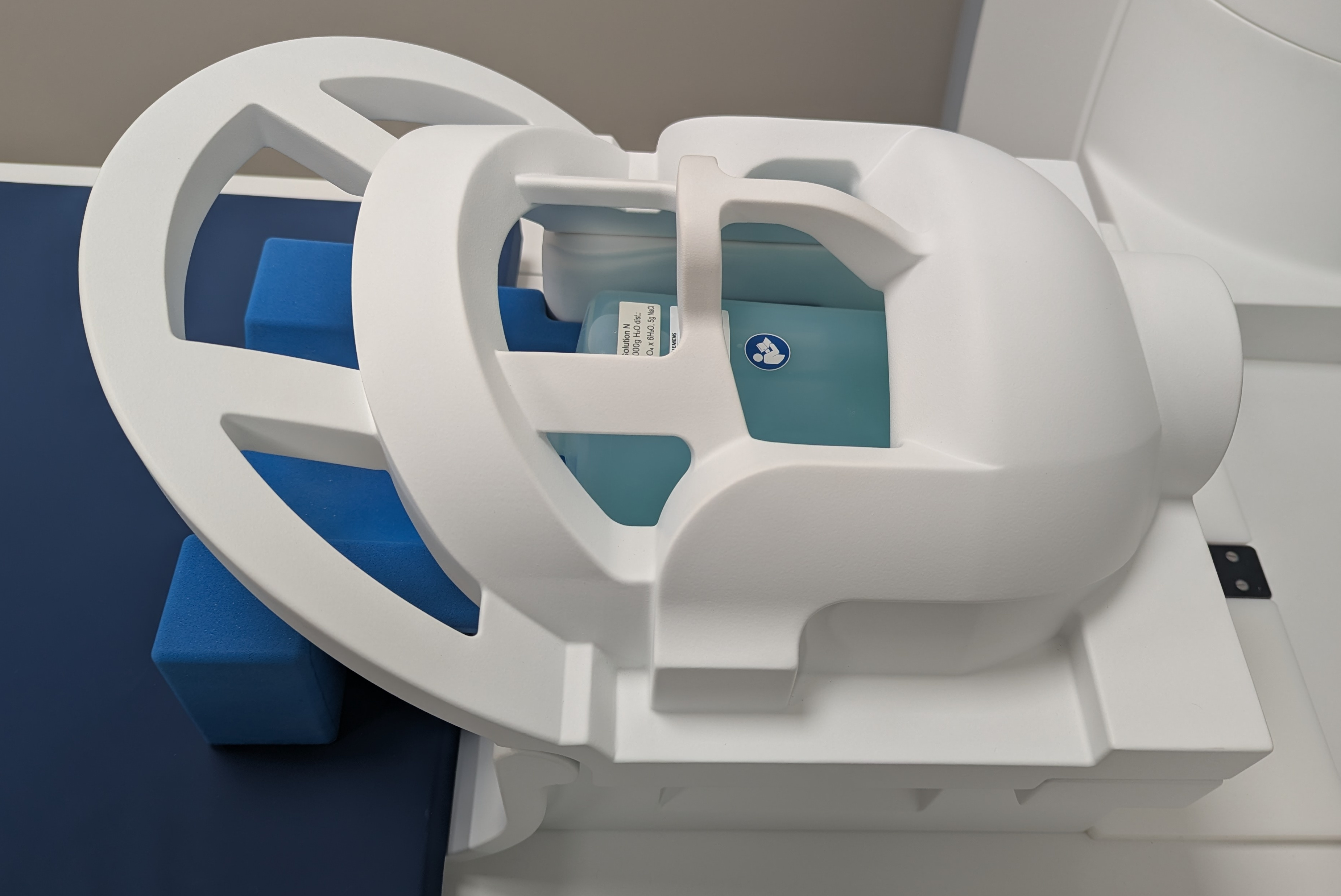
Simulate 4: Use Table In Slow (Mock Control, I) to drive participant to up to alignment. Have participant close eyes.
- SAFETY: Closing eyes is critical to avoid damaging the eyeball with alignment laser!
Simulate 5: Turn laser on (Mock Control, E). Use Table In/Out Slow (Mock Control, H & I) to align laser between eyebrows.
- Turn off laser (Mock Control, E).
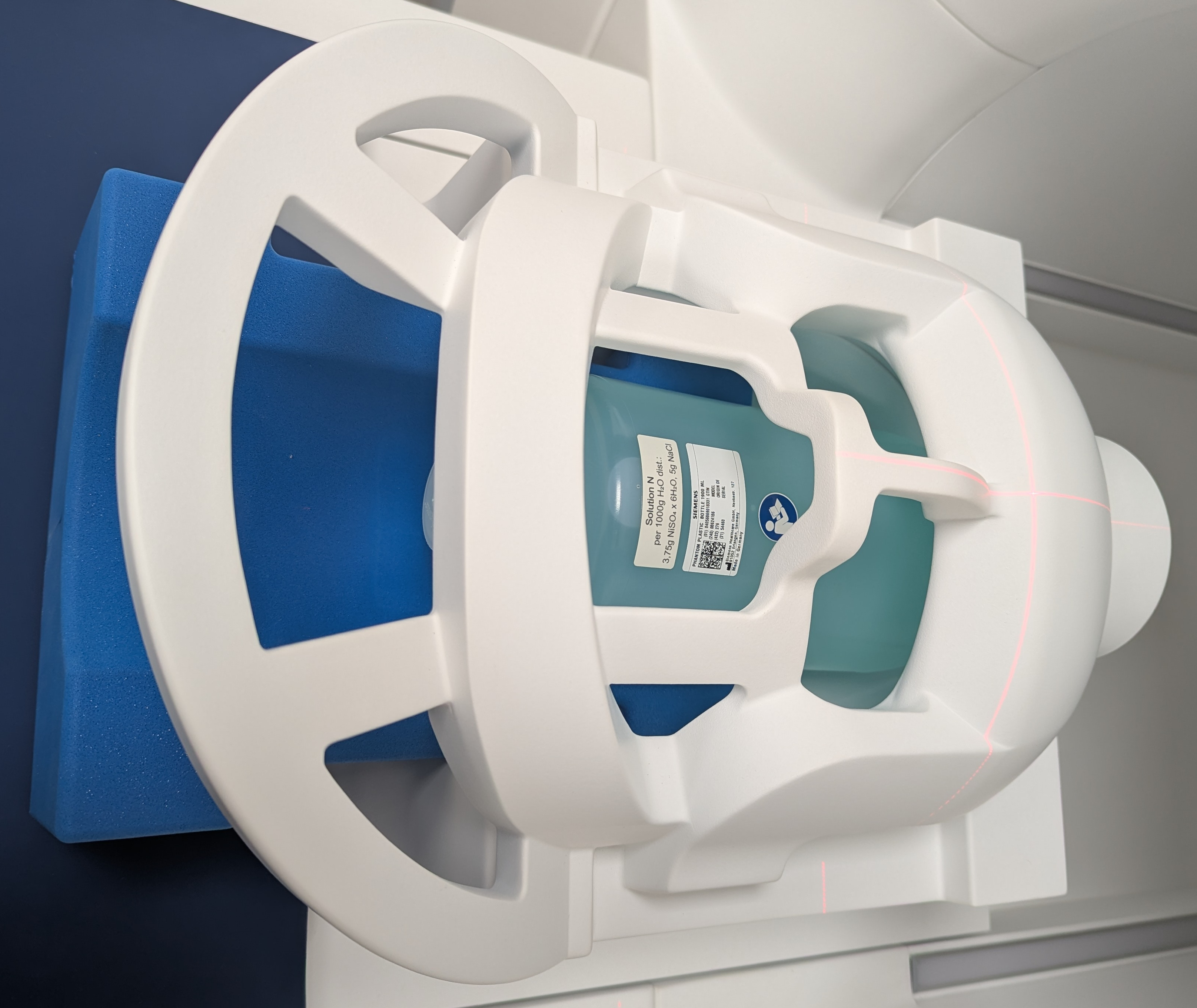
Simulate 6: Attach mirror to coil top. Adjust mirror (superior/inferior) until participant can see monitor screen.
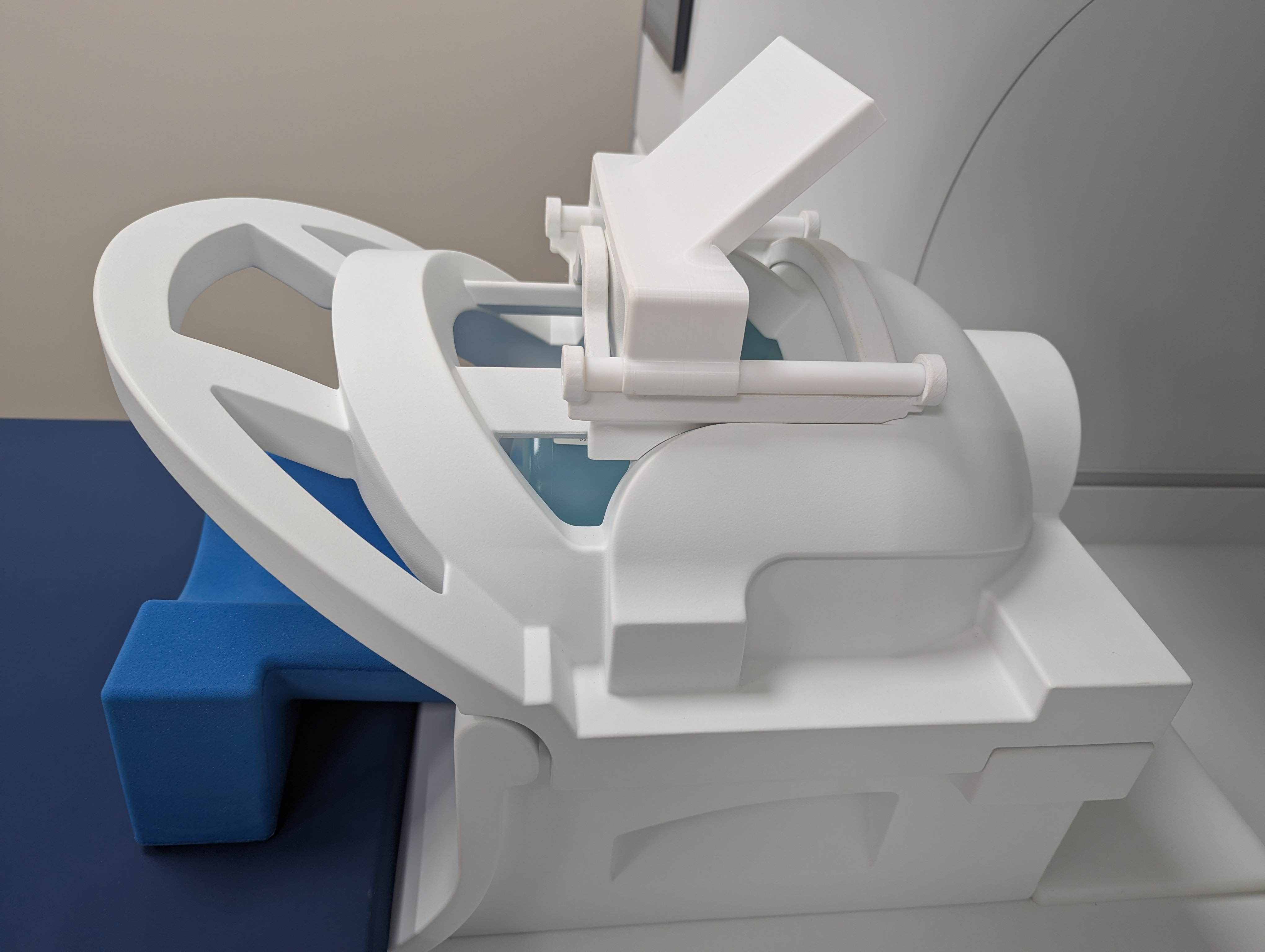
Simulate 7: Send participant to isocenter via Advance to Scan (Mock Control, M).
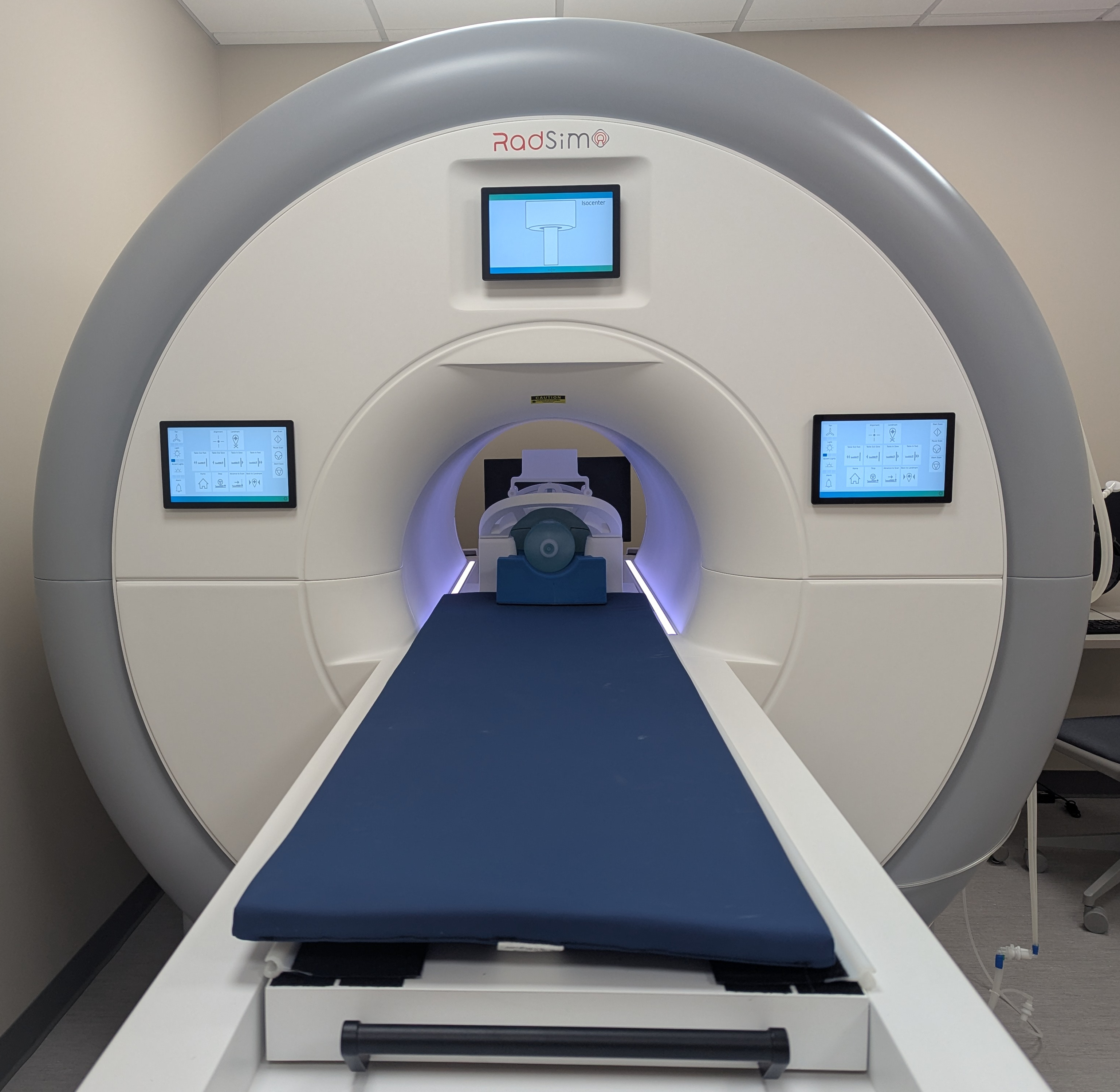
Simulate 8: Conduct simulation via Start Scan (Mock Control, O).
- Use Options menu to select additional sequences (Mock Control, R).
End Simulation
End 1: Stop simulation with Pause/Abort Scan (Mock Control, P & Q).
End 2: Return participant to home position with Home (Mock Control, K).
- It is also possible to drive the participant to the home position with Table Out Fast/Slow (Mock Control, G & H).
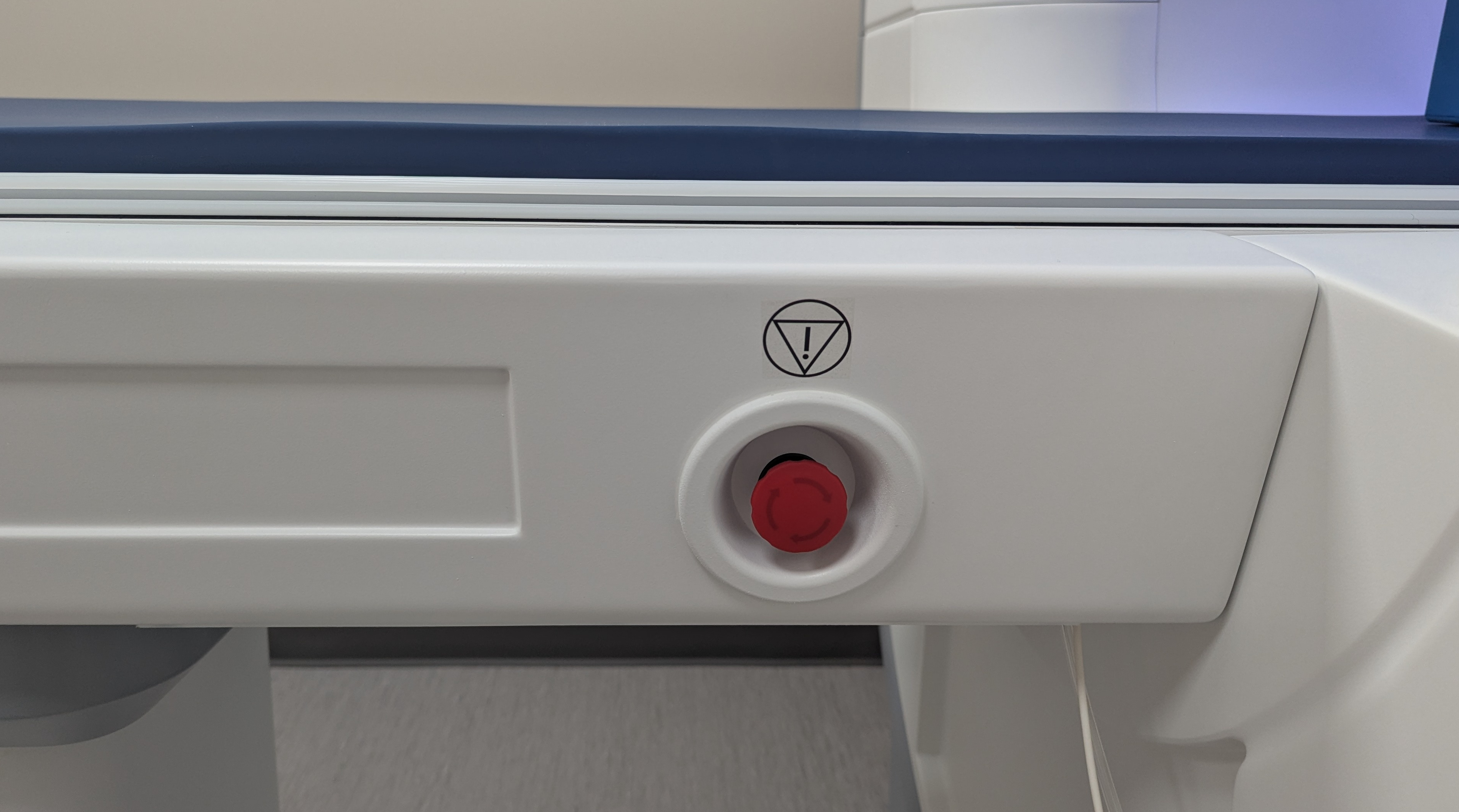
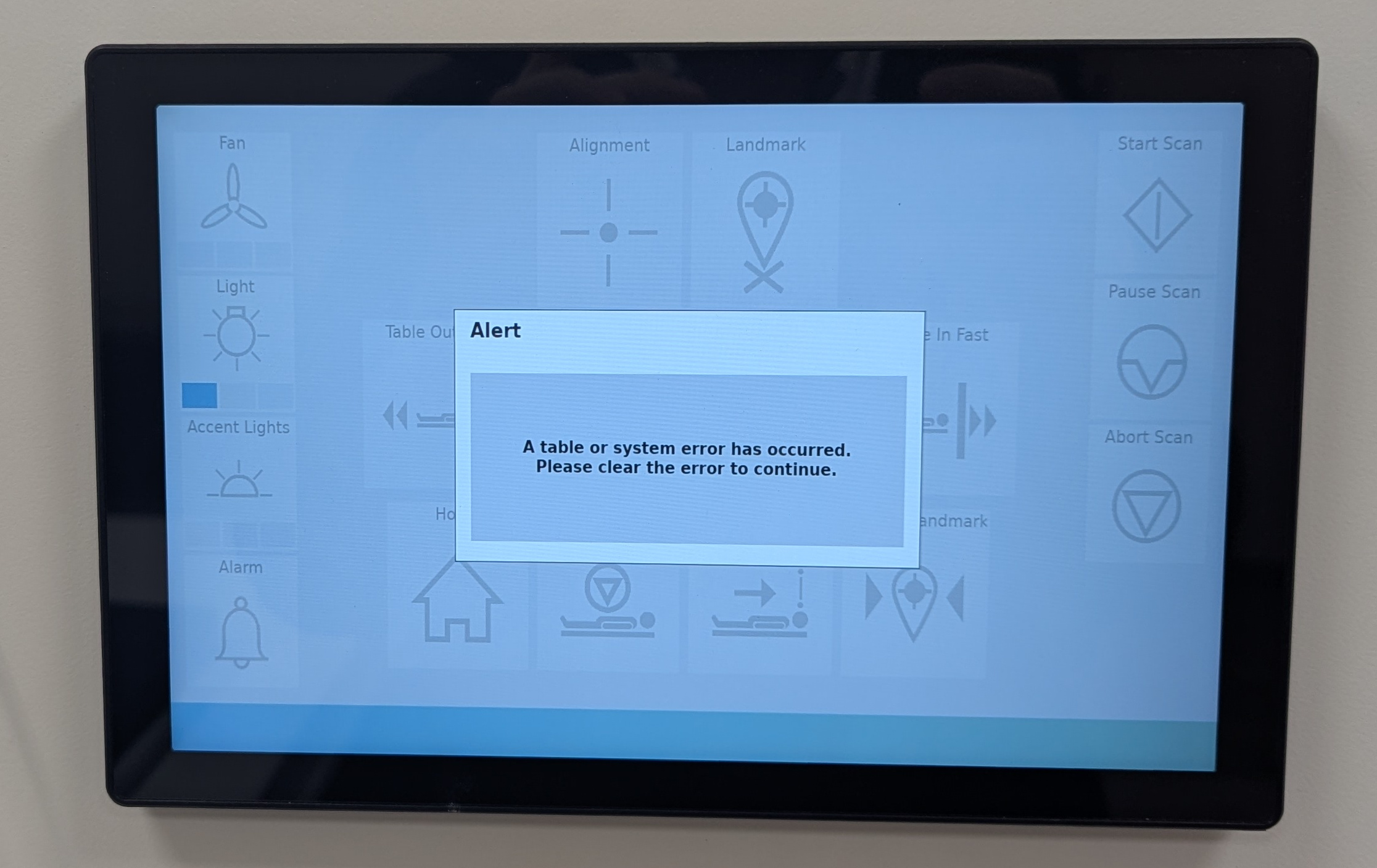
End 3: For power failure, issues with the table moving: press the table release button.
- Manually pull table to home position.
- Twist release button clockwise to reset table and clear the error.
Monitor Movement
The Encore MRI Simulator is equiped with Motrak hard/software. The complete user manual is available here.
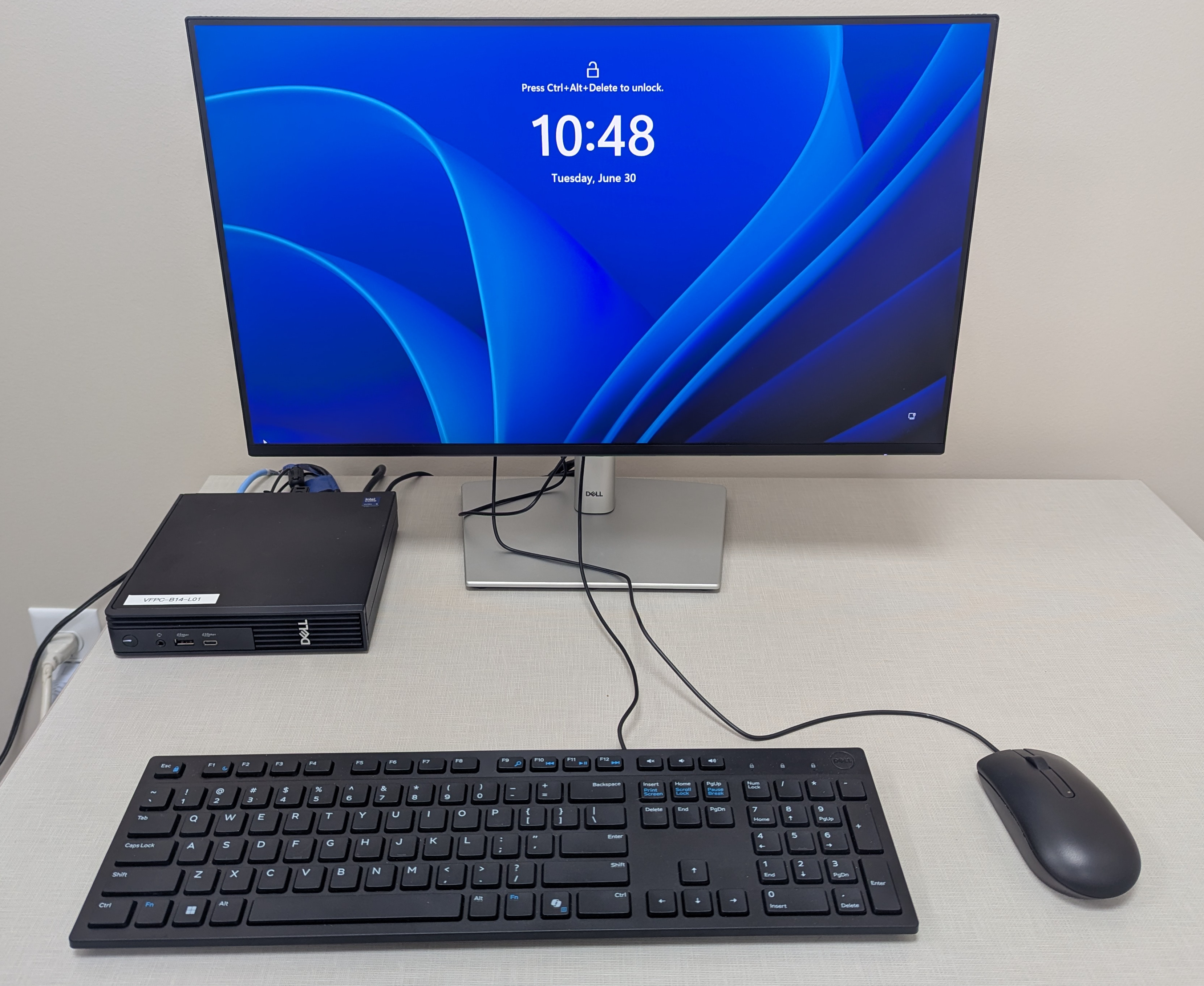
Monitor 1: Log into the mock control computer using your Notre Dame credentials.
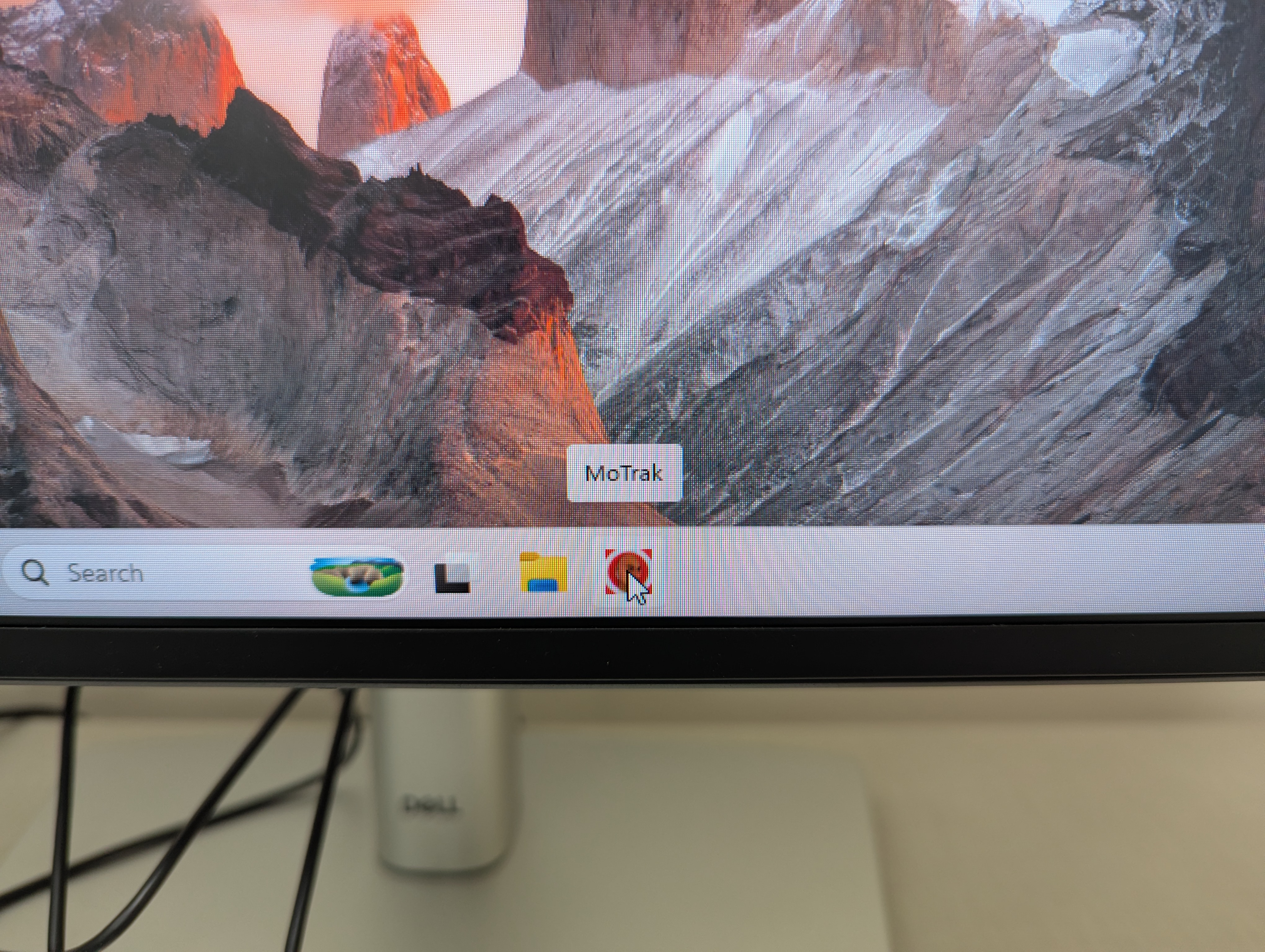
Monitor 2: Start the Motrak software.
- Note: upon mock startup, the Motrak hardware requires 5 minutes of warmup time before being operational.
Monitor 3: Indicate whether to save log files. If saving, designate the proper output CorpFS location.
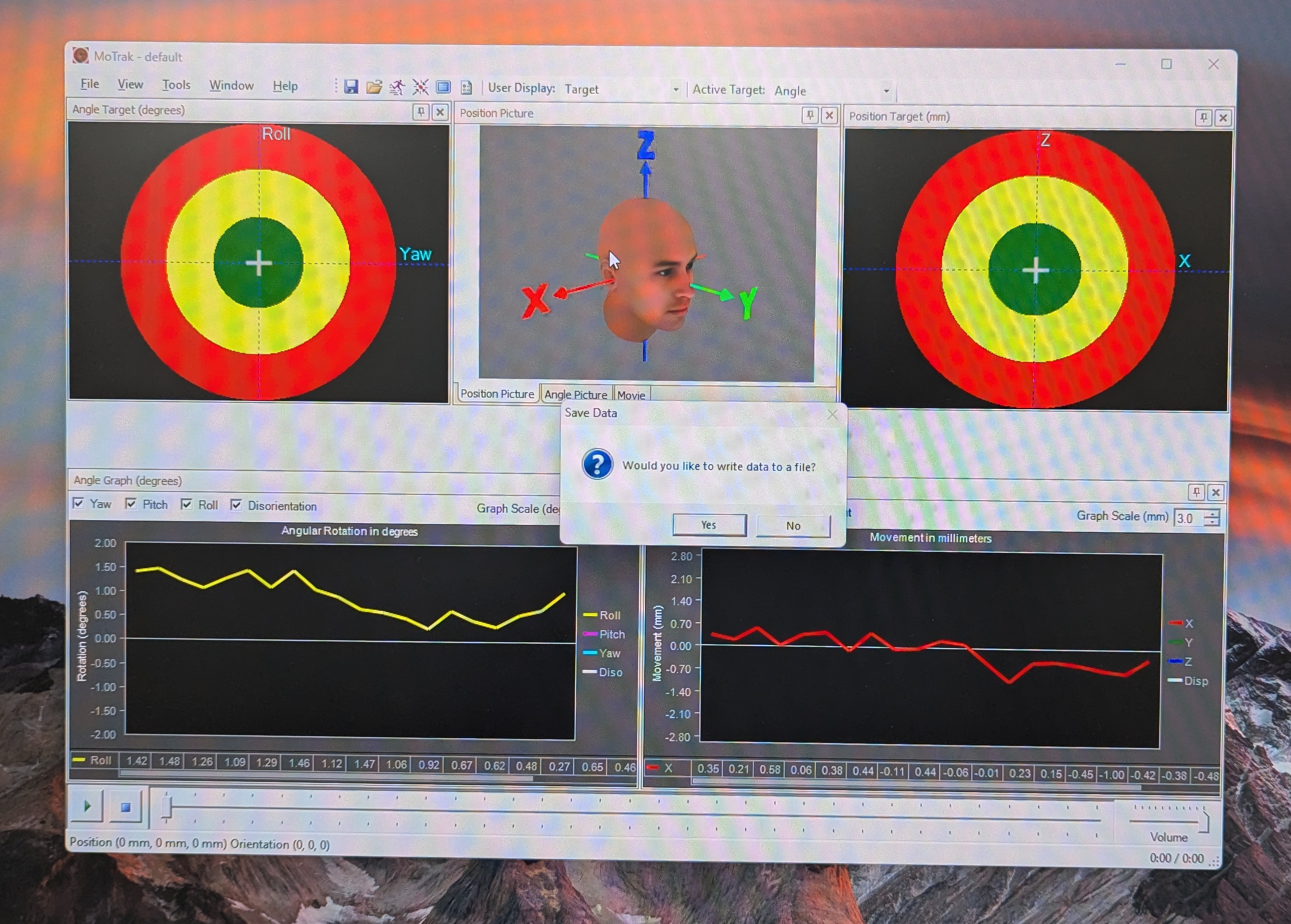
Monitor 4: Motrak has two user interfaces: the control screen and participant target viewer.
- The Participant target viewer is available via F11 and should be presented on the stimulus monitor.
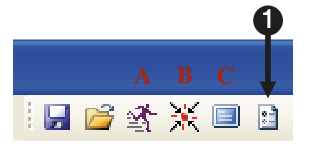
- Use the Full Screen option (Motrak Options, C).
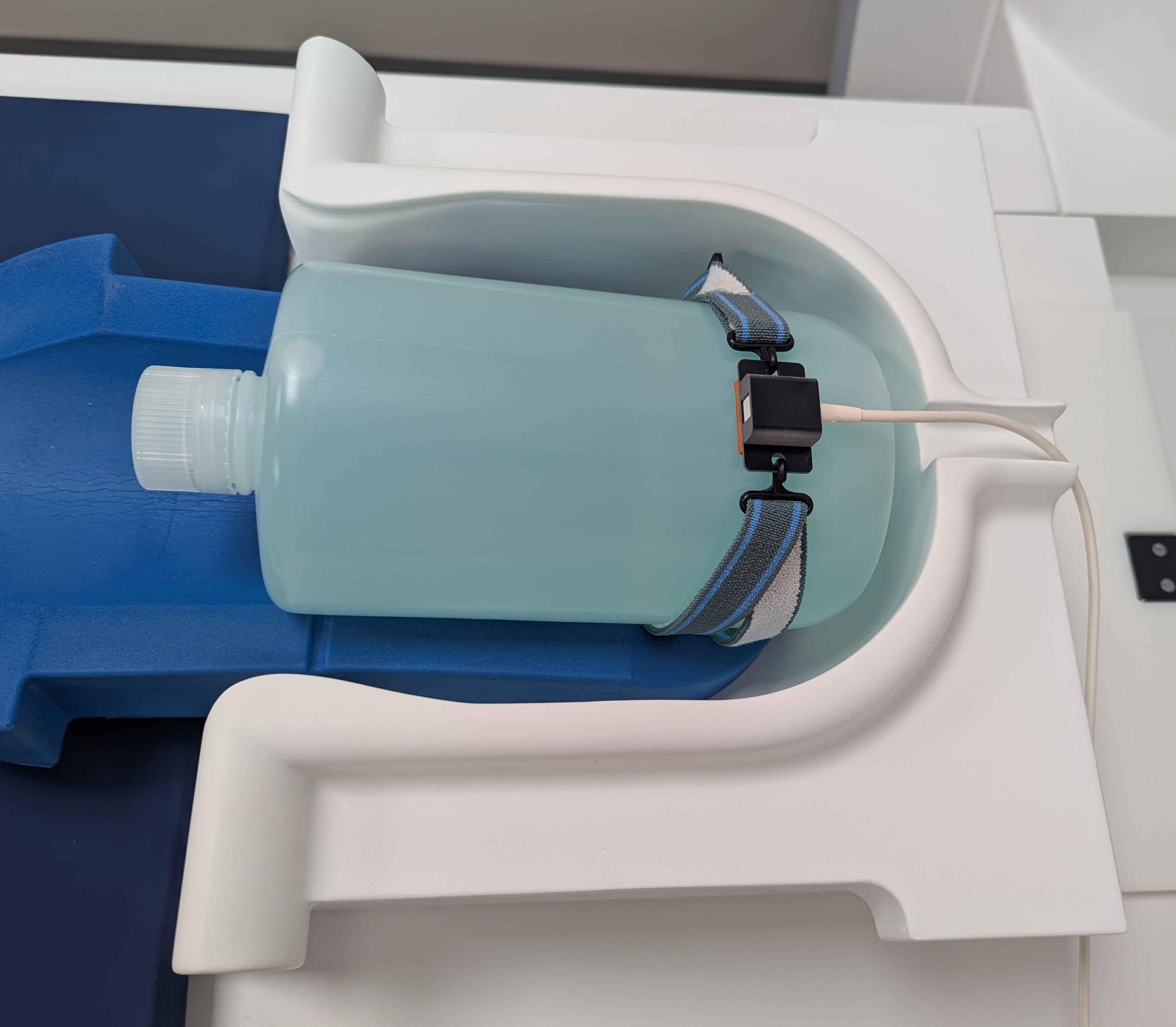
Monitor 5: Load participant onto mock bed (see, above).
- Have the participant wear the Sensor headband (Mock Equipment, B), with the Sensor in the middle of the forehead.
- Align the Sensor cable with the exit port at the top of the coil.
Monitor 6: Send participant to isocenter, conduct MRI simulation.
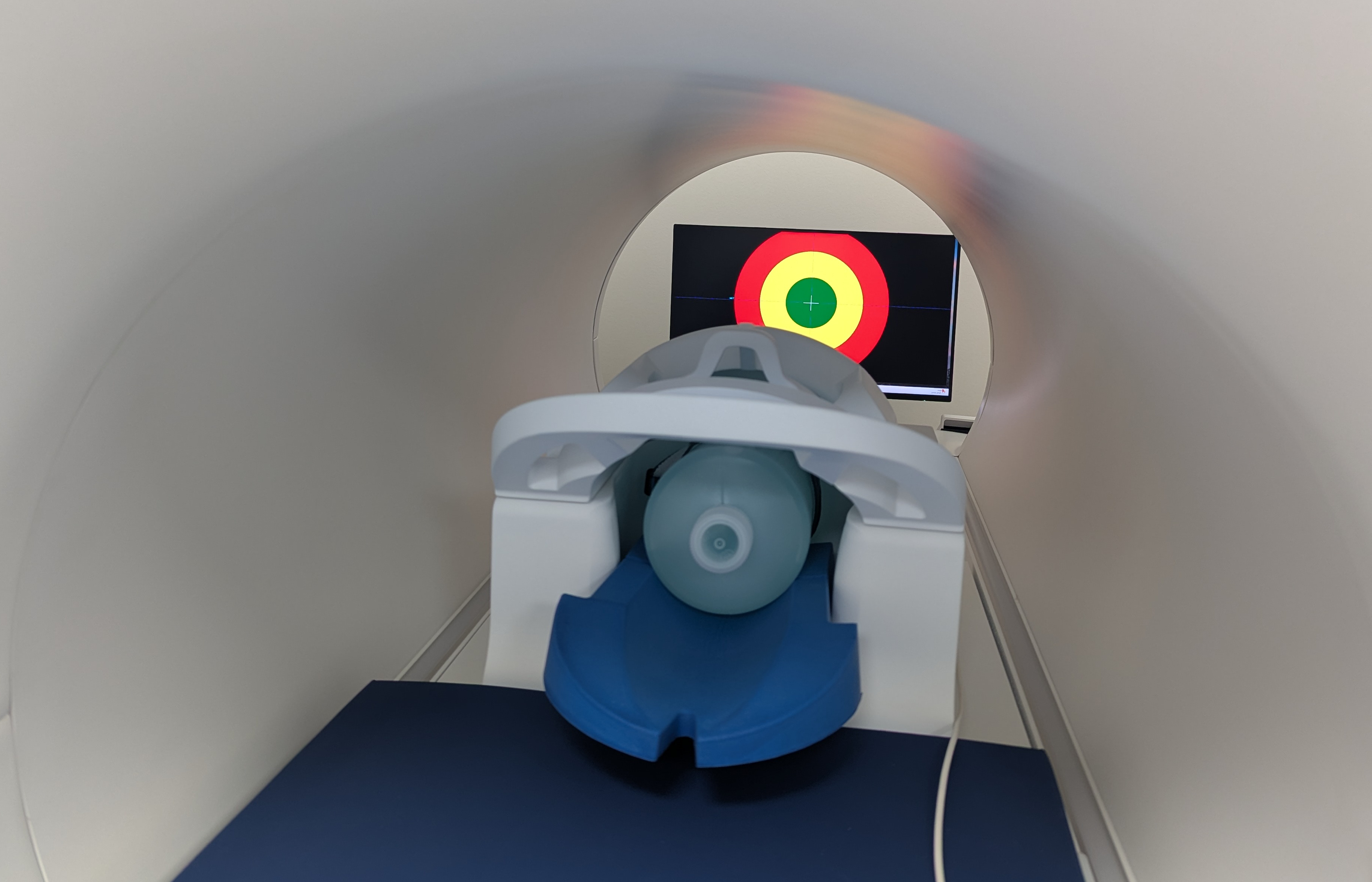
Monitor 7: Start motion tracking (Motrak Options, A).
Monitor 8: When head motion stabilizes, reset crosshairs (Motrak Options, B).